Stitching 3D Datasets
The Stitch 3D Dataset feature lets you combine, or merge, multiple volumetric datasets into a single 3D dataset.
Merge Datasets dialog
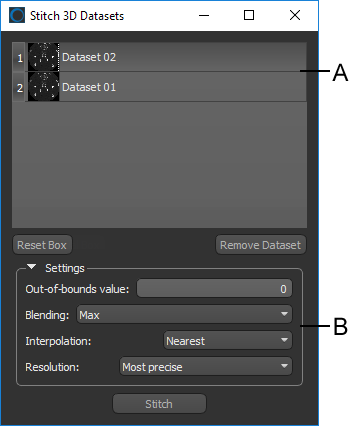
A. List of datasets B. Settings
The top section (A) of the Stitch 3D Datasets dialog contains a list of all the datasets that you selected for stitching, while the bottom section (B) contains the selectable settings.
If required, you can drag a dataset from the Data Properties and Settings panel to add it to the current operation. You can also remove a selected dataset by clicking the Remove Dataset button. You should note that the reference box that is created automatically to encapsulate all of the selected datasets can be reset by clicking the Reset Box button.
All of the datasets you select for stitching must be of the same data type. If required, you can restructure image data for your stitching needs (see Converting Image Data).
 Settings
The following settings are available for stitching volumetric datasets.
|
|
Description |
|---|---|
|
Reset Box |
Lets you reset the reference box that determines the dimensions of the output dataset. The initial size and orientation of the reference box, which appears automatically as the Stitch 3D Datasets Box in the Data Properties and Settings panel, is modeled on the selected datasets to provide the best initial fit. |
|
Out-of-bounds value |
Lets you assign a data value to voxels that are out-of-bounds. Out-of-bounds voxels are voxels that are included in the Stitch 3D Datasets box, but do not intersect with any of the voxels of the datasets selected for merging. |
|
Blending |
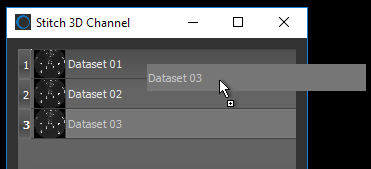
Lets you choose a blending method as follows: Max… The maximum intensity values of all datasets selected for the stitch operation will be applied to the voxels of the output image. Mean… The mean intensity values of all datasets selected for the stitch operation will be applied to the voxels of the output image. Min… The minimum intensity values of all datasets selected for the stitch operation will applied to the voxels of the output image. No blending… In this case, voxel values will be assigned based on the order in which the datasets appear in the Stitch 3D Datasets dialog. This means that the values of the dataset at the top of the list will be applied directly to all corresponding voxels in the Stitch 3D Datasets box. If there are not intersecting voxels in the dataset at the top of the list, then the values of the dataset below will be applied. If there are no intersecting voxels in any dataset, then the out-of-bounds value will be applied. If required, you can re-order the datasets in the list by dragging items up or down, as shown below.
Weighted… Intensity values will be smoothly adjusted between all datasets selected for stitching by applying a weighted average of the closest 2x2 neighborhood. |
|
Interpolation |
Lets you choose the type of interpolation applied to stitch the selected datasets as follows: Nearest… This basic interpolation scheme requires the least processing time because it only considers one pixel — the one closest to the interpolated point. Linear… Considers the closest 2x2 neighborhood and then takes a weighted average of these four pixels to arrive at its final interpolated value. Tricubic… This interpolation scheme goes one step beyond Linear by considering the closest 4x4x4 neighborhood of known pixels. Will result in smoother looking images than Linear. |
|
Resolution |
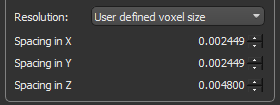
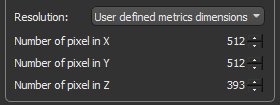
Lets you choose the resolution of the output dataset as follows: Most precise… Uses the smallest voxel size of all datasets selected for the stitch operation. User defined voxel size… Lets you choose the required values for spacing in the X, Y, and Z axes, which determines the voxel size. You should note that increasing spacing along an axis will reduce the number of pixels along that axis by downsampling. Conversely, decreasing the spacing along an axis will increase the number of pixels along that axis by upsampling.
NOTE User-defined voxel size selections are limited to a factor of 10 of the original image data. User defined matrix… Lets you choose the resolution of the output dataset as the number of pixels in the X, Y, and Z axes. You should note that increasing the number of pixels along any axis will decrease the corresponding spacing value, while decreasing the number of pixels along an axis will increase the corresponding spacing value.
NOTE In all cases in which the resolution of the original image data is changed, the geometry of the Stitch 3D Datasets box — which is calculated as the [(number of pixels)*spacing] — will be maintained. |
 How to Stitch 3D Datasets
- Load all of the datasets that you plan to stitch.
- Preview the datasets you plan to merge in the same scene and in multiple orientations, recommended (see Working in Fusion Mode).
NOTE You can align the centroid of a selected dataset with another by choosing the pop-up menu item Align Centroid With.
- If required, adjust the position of one or more of the datasets that you plan to stitch so that all of the important features are aligned.
You can use the tools on the Move panel to manually position a dataset (see Using the Move Tools) or you can automatically register datasets with Dragonfly's feature-based registration workflows (see Registering Datasets Automatically). You can also align the centroid of a selected dataset with another by choosing the pop-up menu item Align Centroid With.
- Select all of the datasets you plan to stitch in the Data Properties and Settings panel, right click, and then choose Stitch 3D Datasets in the pop-up menu.
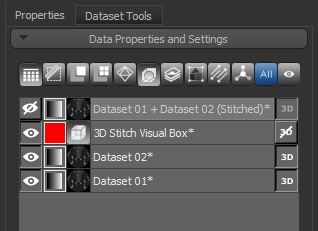
The Stitch 3D Datasets dialog appears. In addition, a Stitch 3D Dataset box, which is created large enough to encapsulate all of the selected channels, automatically appears in the current scene views.
NOTE If required, you can also drag a dataset from the Data Properties and Settings panel to the Stitch 3D Datasets dialog.
- Adjust the size of the Stitch 3D Datasets box, if required.
You can edit the size of the box and its position in any 2D view or in the 3D view by simply dragging the available control points (see Editing Shapes). Click the Reset Box button to reset the box to its original size, which should encapsulate all of the datasets you selected for stitching.
- Choose the settings that you want to apply to the output dataset, as described in Settings.
Out-of-bounds-value… If required, select the data value that will be assigned to voxels that do not intersect with the datasets selected for merging, but that are included within the 3D Merge box.
Blending… Choose a blending method — Max, Mean, Min, No blending, or Weighted — as required.
Interpolation… Choose an interpolation method — Nearest, Linear, or Tricubic — as required.
Resolution… Choose a resolution — Most precise, User defined voxel size, or User defined matrix — as required.
- Click the Stitch button.
A new dataset, which is the result of the selected operation, appears in the Data Properties and Settings panel.